What is CanvaSlide?
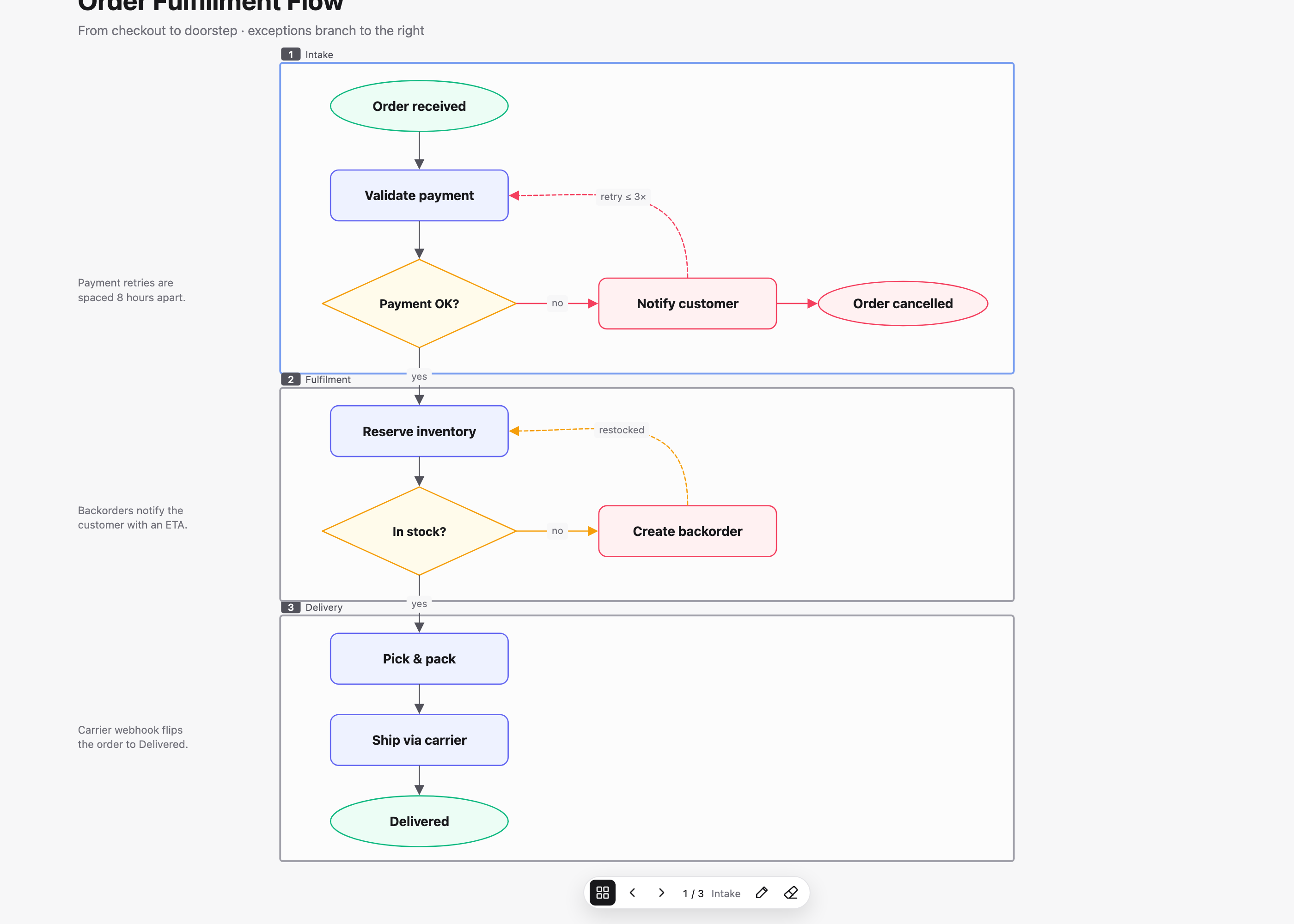
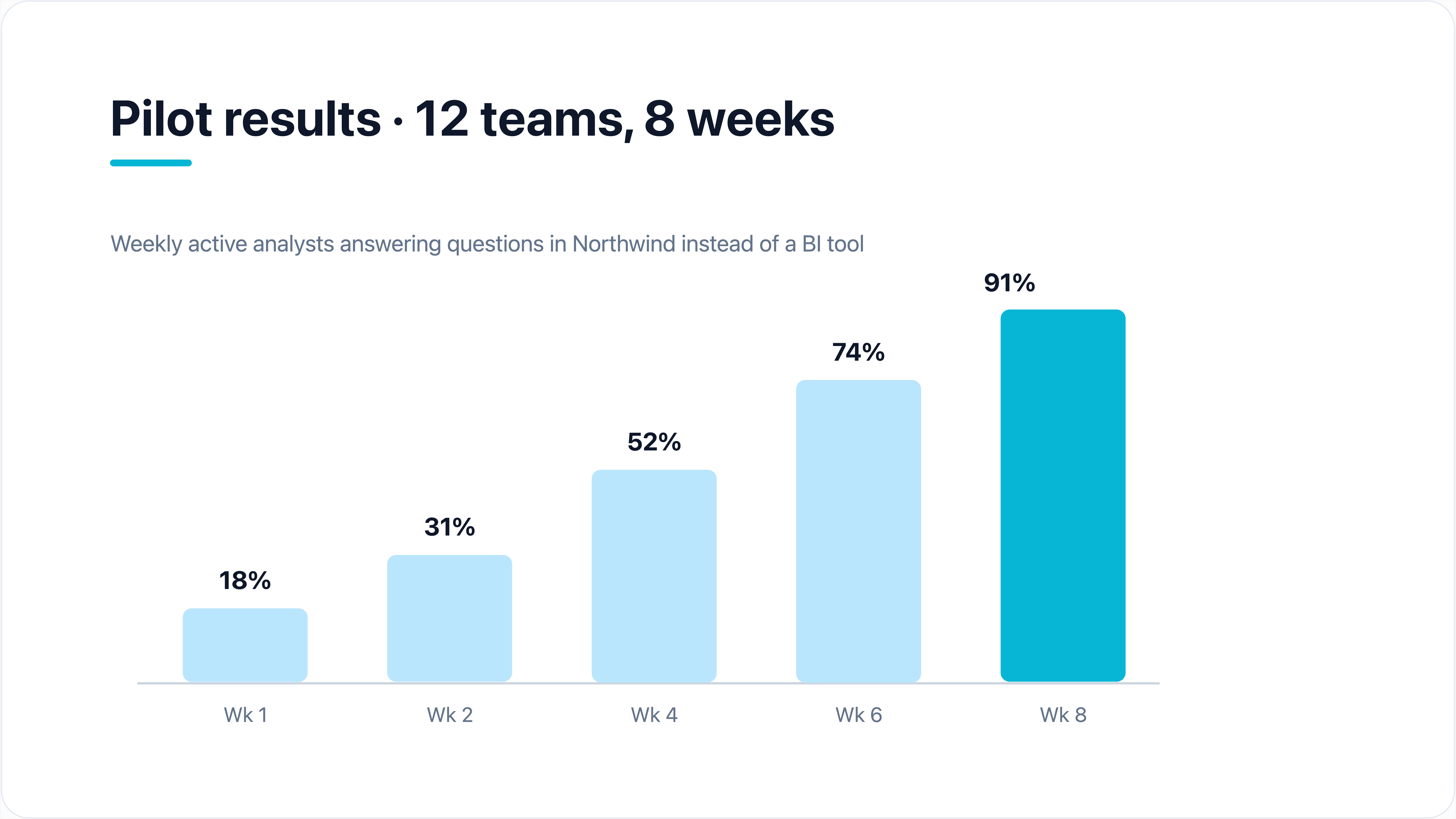
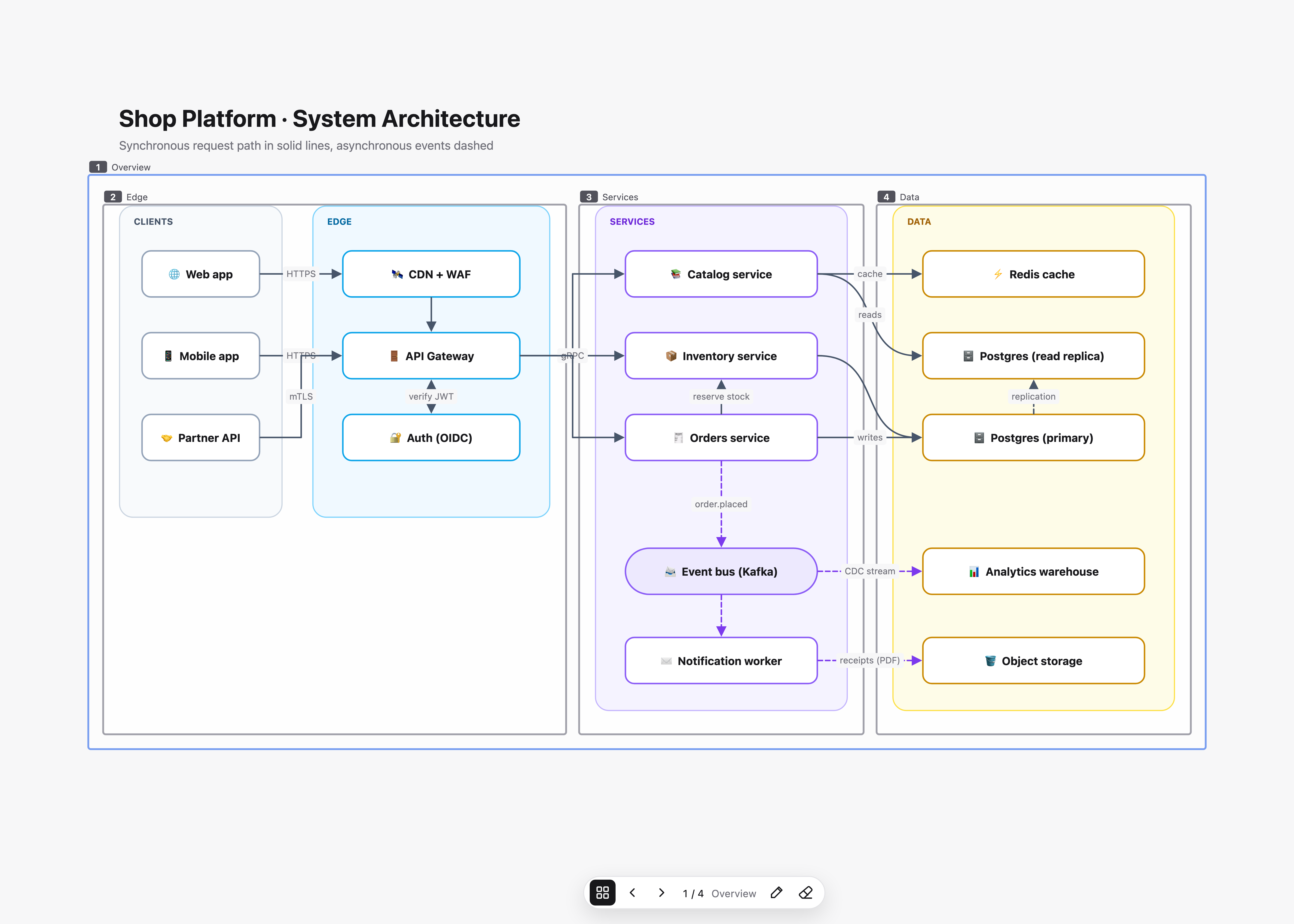
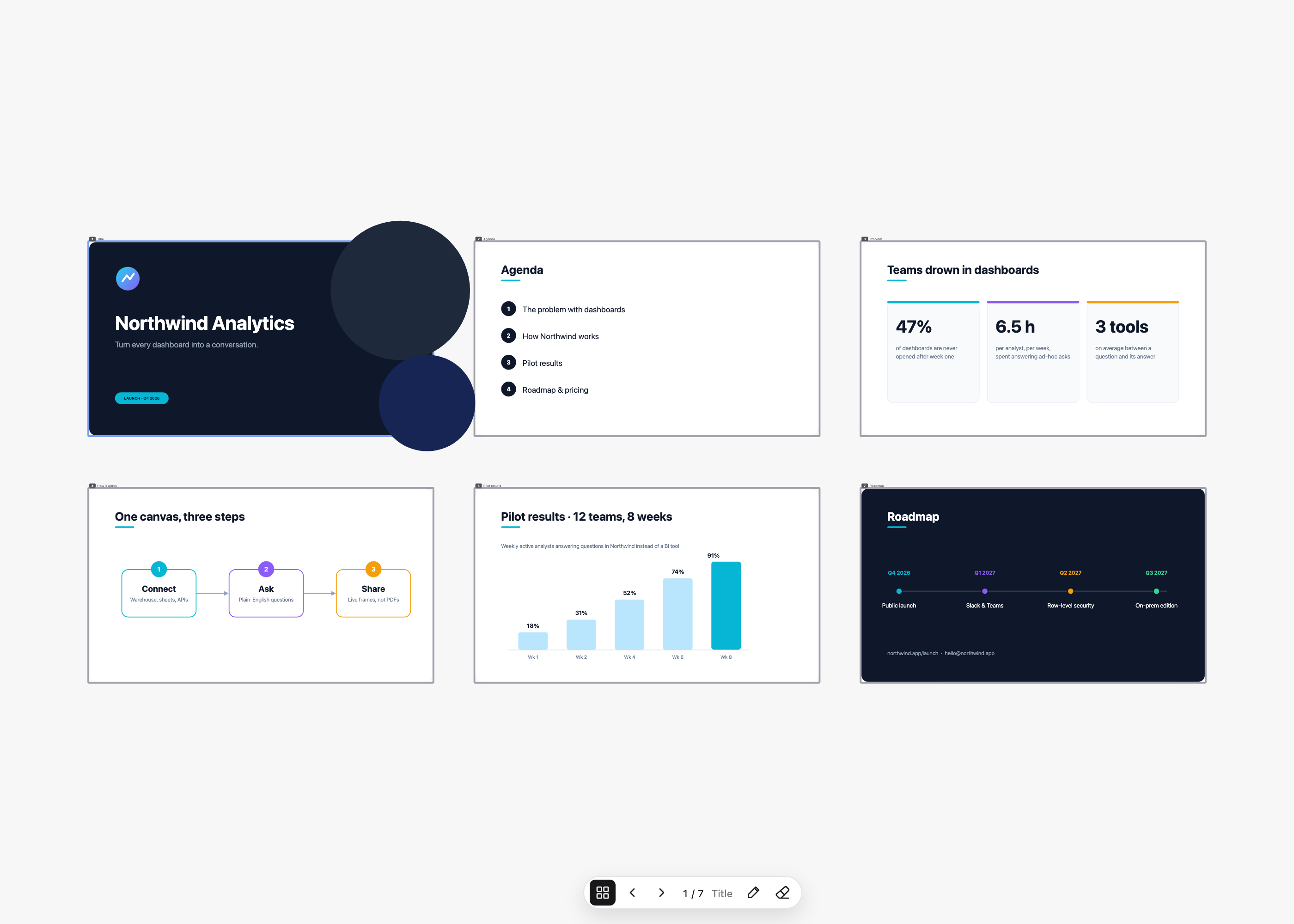
CanvaSlide is free, open-source presentation software built around an infinite canvas. Arrange text, shapes, images and diagrams in one space, draw frames around the views you want to show, and present by zooming between them. You can start from an editable example or create your own canvas.
WelcomeHow is it different from a slide-based presentation?
Your content stays together on one canvas instead of being split across separate slides. Frames define the views and their order, so you can show the big picture and zoom into a detail without duplicating content. You can also arrange frames like a familiar slide deck.
Frames & presentingHow do nested frames work?
Draw a frame around a whole slide, then a smaller frame around a chart, table or detail inside it. Put the smaller frame next in the presentation order. The camera zooms into that area on the same canvas; the previous-frame control takes you back. This also works in exported HTML presentations.
Frames & presentingCan I bring in my Figma designs?
Yes. Import a local .fig file and choose editable text and shapes or preserved appearance. Supported text and simple shapes stay editable; complex artwork may become images. Some effects, layout rules and masks are not preserved exactly, so review the conversion report. You can also import images and PDF pages; each PDF page becomes an image.
Import & videoHow do I create a presentation with AI?
Copy a prompt to an external AI assistant that can create files. Ask for an editable .canvaslide file, open it in CanvaSlide, check the result and present or export HTML. The website and editor prepare the prompt; they do not send requests to an AI service.
Create with AIDoes it work on macOS, Windows and the web?
Yes. Desktop installers for macOS and Windows are available on the Releases page. You can also open the web editor in a browser without installing the app. In the browser, Chromium-based browsers save back to the opened .canvaslide file, while Safari and Firefox download a copy; desktop export can embed subsets of installed fonts, while browser export depends on available fonts.
InstallationCan I work and present offline?
Yes. You can edit and present offline in the desktop app using a .canvaslide file with embedded content. If you only need to present, export a single HTML file that plays offline in a browser. Images and the player are included; desktop export can also embed subsets of installed fonts. Browser export depends on available fonts. Linked videos still need a network connection.
Save & shareDo viewers need to install CanvaSlide?
No. Export your presentation as one HTML file and viewers can open it in a browser. The file contains the player, canvas content and embedded images. Keep the original .canvaslide file for further editing; the exported presentation is for viewing. Linked videos still need their provider and network.
Save & shareDoes a share link update as I edit?
No. Experimental cloud sharing creates a snapshot, not live collaboration. Later edits do not update the link. Anyone with the link can access it for 24 hours; there is no manual revocation. Keep a local editable copy or export HTML for a portable presentation.
Save & shareIs it free? Do I need an account?
Yes, CanvaSlide is free and open source. The desktop app works without an account, and your documents are files you save on your computer. You can try editable examples in the web editor without signing in, too.
Common questions


 Open in web editor